
AV Access 8K KVM Switch 3 Monitors 2 Computers, KVM Docking Station
4.2Editor score
Combines KVM and docking
Supports 100W charging
Includes Ethernet passthrough
This guide compares the best KVM Switch for Triple Monitors 2 setups, evaluating resolution, USB support, and switching modes for seamless multi PC workflows.
Finding the right KVM Switch for Triple Monitors 2 setups can transform your workspace efficiency. Whether you are a developer, gamer, or content creator, managing multiple computers without swapping cables is essential for productivity and comfort.
We compared ten top-rated models based on resolution support, USB connectivity, and switching ease. Our analysis focuses on reliability, compatibility with modern displays, and the ability to maintain consistent performance across extended work sessions.
Each pick highlights specific strengths like 8K support or EDID emulation. Remember that prices and availability fluctuate, so always check the latest details before making your final decision for your unique multi-monitor environment.
4.2Editor score

3.9Editor score

4.9Editor score
Below you will find a detailed side-by-side comparison of the top ten KVM switches designed for triple monitor setups with two computers. This table helps you quickly identify key specs like resolution support, USB ports, and included accessories to find the perfect match for your desk.


This UGREEN KVM switch is designed for users needing high resolution support across three monitors. With a rating of 3.9, it offers robust video capabilities including 8K@60Hz and backward compatibility with various refresh rates like 4K@240Hz. It is ideal for professional setups requiring crisp visuals.
We may earn a commission when you buy through this link, at no additional cost to you.
The device features two DisplayPort 1.4 ports and one HDMI 2.1 port, allowing flexible connectivity options. It supports extended and mirror modes, giving you control over how your screens display information. The inclusion of 4 USB 3.0 ports ensures you can share peripherals like keyboards and printers easily.
While it supports many high-end features like HDR10+ and G-Sync, users should note that hotkey switching is not supported. Additionally, achieving 8K resolution requires specific cable lengths under 2 meters and compatible hardware on both computers. This ensures stability but adds setup complexity.
If you need a reliable way to switch between two computers with triple monitors and high resolution, this model is a strong choice. It is particularly suitable for content creators and IT professionals who prioritize video quality and shared device access over keyboard shortcuts.
The switch supports up to 8K@60Hz resolution, ensuring sharp visuals for professional work and detailed graphics processing.
With four USB 3.0 ports, you can connect multiple devices like webcams and printers for seamless sharing across systems.
We may earn a commission when you buy through this link, at no additional cost to you.
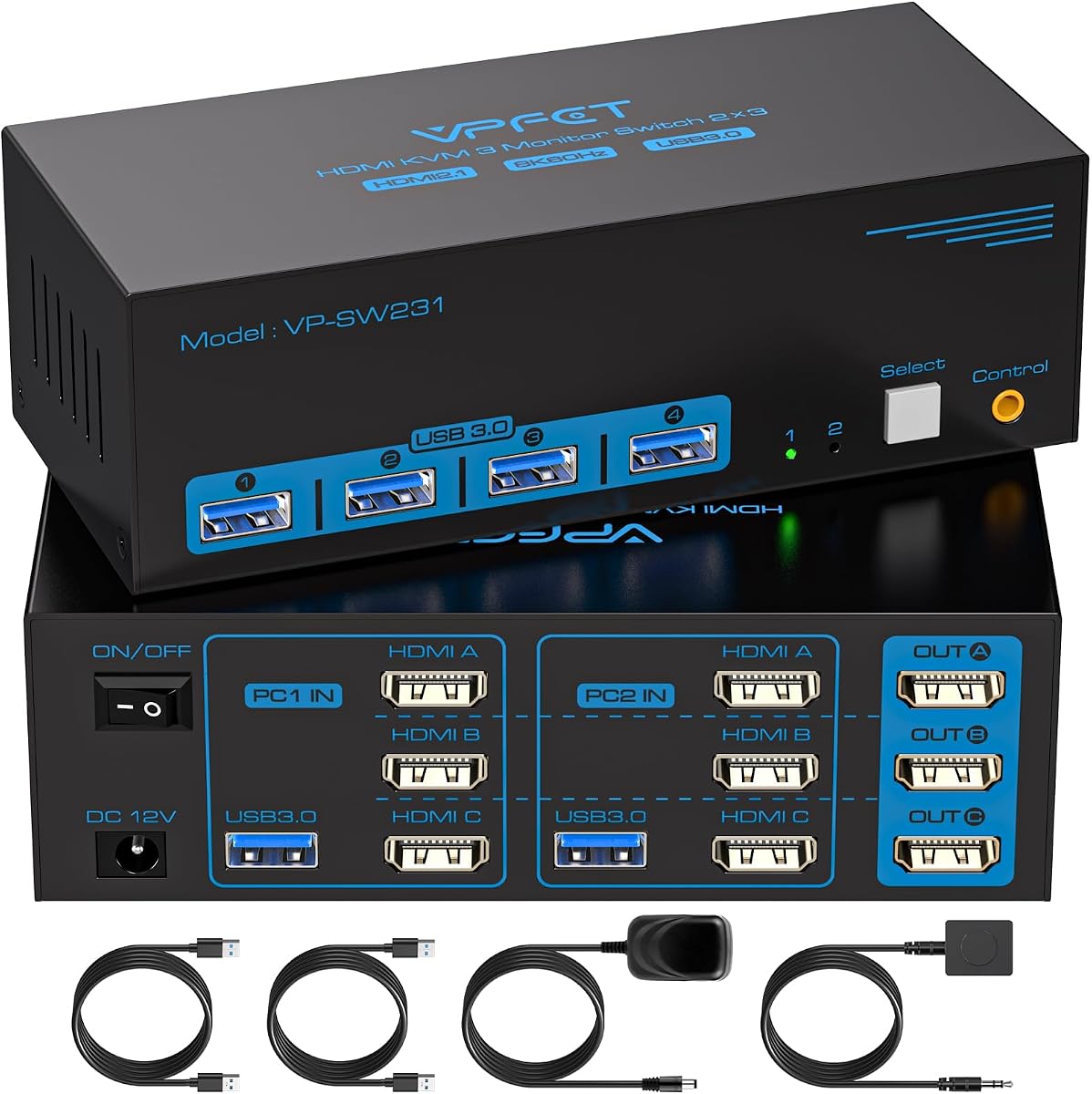
This HDMI KVM switch provides a straightforward solution for switching between two computers with three monitors. While it does not have a specific rating score, its feature set offers solid value for users needing basic 4K support. It focuses on simplicity and ease of use for standard office tasks.
We may earn a commission when you buy through this link, at no additional cost to you.
It supports resolutions up to 4K@60Hz and includes 4 USB 3.0 ports for data transfer speeds up to 5Gbps. The switch allows both extended and duplicate display modes, making it flexible for different workflows. You can use the panel button or external wire controller to toggle between systems.
Keep in mind that this model does not support keyboard shortcuts for switching, so you must use physical buttons. It also requires three HDMI cables per computer, which might limit flexibility if your systems have mixed ports. However, it is stable with a 12V power adapter.
This switch is ideal for users who need a reliable, budget-friendly option for triple monitor setups. If you do not need 8K resolution or hotkeys, it offers a clean and functional experience for home offices and small businesses.
Supports both extended and duplicate modes allowing you to customize how your three screens display content across computers.
USB 3.0 ports offer transfer speeds up to 5Gbps making file sharing between connected devices fast and efficient.
We may earn a commission when you buy through this link, at no additional cost to you.
The AV Access KVM Docking Station stands out with a remarkable 4.9 rating from users. It combines KVM switching with full docking capabilities, allowing you to connect a laptop and desktop to a triple monitor setup. This makes it perfect for users needing advanced connectivity beyond simple switching.
We may earn a commission when you buy through this link, at no additional cost to you.
It supports up to 8K@60Hz on the desktop and 4K@60Hz on the laptop with high refresh rates like 165Hz for smooth motion. The single USB-C cable for the laptop handles video, data, and up to 100W charging, reducing cable clutter. It also includes 10Gbps USB ports for fast file transfers.
While it is more expensive than standard switches, the inclusion of features like Ethernet passthrough and SD card reading justifies the cost for professionals. You can keep both computers online simultaneously even when switching, which is vital for background downloads or cloud syncing tasks.
Choose this docking station if you need a complete workspace solution with high power charging and network connectivity. It is best suited for creative professionals and power users who demand the highest performance and integration in their dual-computer setups.
Acts as both a KVM switch and docking station offering network audio and charging in a single device for laptops.
Maintains Ethernet connection on both computers ensuring background tasks continue while you switch control between systems.
We may earn a commission when you buy through this link, at no additional cost to you.
This KVM switch is a strong option for users needing hybrid input support with both HDMI and DisplayPort options. With a rating of 4.3, it offers reliable performance for triple monitor setups. It supports high resolutions up to 8K@60Hz and fast refresh rates like 4K@144Hz for smooth visuals.
We may earn a commission when you buy through this link, at no additional cost to you.
The device allows two computers to share three monitors and four USB 3.0 ports for peripheral connectivity. It supports extended and duplicate display modes, letting you configure your workspace as needed. The package includes a wired remote and a 12V power adapter to ensure stable operation.
Users should note that keyboard shortcuts are not supported for switching, so you must use buttons or the remote. It also requires specific port configurations on your PC, typically needing two DisplayPort and one HDMI port to work correctly. This ensures full functionality but limits compatibility with some laptops.
This switch is ideal for users with desktop setups requiring high refresh rates and multiple connection types. If you need to balance performance and cost without giving up on 8K support, this model provides a solid middle ground for productivity and gaming.
Supports 4K@144Hz on HDMI making it suitable for smooth motion in gaming and video editing applications.
Includes necessary accessories like remote controller power adapter and USB cables for a plug and play experience.
We may earn a commission when you buy through this link, at no additional cost to you.
This 8K KVM switch is designed for users needing versatile connectivity between DP and HDMI ports. It has a 4.3 rating indicating solid reliability for daily use. The switch supports stunning visual quality with HDMI reaching 8K@60Hz and DisplayPort reaching 4K@144Hz for smooth performance.
We may earn a commission when you buy through this link, at no additional cost to you.
It features 4 USB 3.0 ports for connecting fast peripherals and includes a power switch to restart the device without unplugging cables. The package includes a 1.5M wired switching option to keep your desktop tidy. It is compatible with Windows Mac OS Linux and Chrome OS systems.
Keep in mind that cable lengths should be within 1.5M for maximum resolution. It also works with native ports and does not support passive adapters, meaning you need direct connections. Active adapters are supported but passive ones might cause issues with signal transmission.
Choose this switch if you need a reliable solution that supports both DP and HDMI inputs with high resolution. It is well suited for multimedia classrooms and business meeting rooms where clarity and ease of switching are essential for presentations.
Delivers stunning 8K visuals and smooth 4K@144Hz gaming experiences for demanding professional and entertainment needs.
Features 4 USB 3.0 ports enabling fast data transfer and connection of multiple devices like cameras and drives.
We may earn a commission when you buy through this link, at no additional cost to you.
This Displayport KVM switch is an excellent choice for users with systems featuring three DP ports. It holds a high rating of 4.7 reflecting strong user satisfaction. The switch supports up to 8K@60Hz and 4K@120Hz for sharp and smooth visuals across your triple monitor setup.
We may earn a commission when you buy through this link, at no additional cost to you.
It allows two computers to share three monitors and four USB 3.0 ports. You can use either panel buttons or a wired remote control to switch between systems. The package includes a 12V DC power supply to support high powered USB devices effectively.
Note that this device does not support switching Bluetooth mice without USB receivers. It also requires your computers to have at least three DP ports to function correctly. This makes it specific to desktop setups with strong graphical capabilities rather than laptops with mixed ports.
For users prioritizing Displayport connectivity and high refresh rates this switch delivers solid performance. It is ideal for gaming and professional work where detailed textures and fluid motion are key. The included remote helps keep your desk organized while you work.
Designed specifically for DP ports delivering high resolution 8K@60Hz and 4K@120Hz for compatible hardware setups.
Includes 12V power supply ensuring that high power USB devices like external hard drives work reliably without issues.
We may earn a commission when you buy through this link, at no additional cost to you.
This KVM switch offers a unique advantage with EDID emulation to save monitor resolution data. With a 4.7 rating it stands out for its ability to maintain window layouts across PC switches. It supports simultaneous triple 4K@60Hz output for crisp visuals without lag or blurring.
We may earn a commission when you buy through this link, at no additional cost to you.
It connects two computers to share three external monitors and includes 4 USB 3.0 ports. The switch is driver free and works with Windows Mac Linux and Unix systems. You can toggle between computers via physical buttons or a wired remote with clear LED indicators.
Keep in mind that hotkey switching is not supported and each PC requires specific HDMI and DP cable connections. The EDID feature is especially useful if you dislike rearranging windows manually every time you switch. It adds stability and reduces setup time significantly.
Choose this switch if you value consistent window placement and resolution retention. It is ideal for users who switch between work and personal computers frequently and want a seamless transition without manual display configuration adjustments.
Saves resolution and window layout data so your monitors retain their settings when switching between two PCs.
Eliminates the need for manual window rearrangement saving time and reducing frustration during daily work sessions.
We may earn a commission when you buy through this link, at no additional cost to you.
This KVM switch is a reliable all-rounder with a 4.6 rating from satisfied users. It meets HDMI 2.1 and DP 1.4 standards supporting 8K@60Hz and 4K@120Hz visuals. It allows two computers to share three monitors and a set of peripherals like keyboards and mice.
We may earn a commission when you buy through this link, at no additional cost to you.
It includes four USB 3.0 ports for high speed data transfer and uses a 12V adapter for stable performance. You can use the built-in panel button or a wired controller to switch systems efficiently. It supports extended and duplicate display modes for flexible workspace setups.
Users should note that cable lengths and quality matter for max resolution and it does not support DP to HDMI adapters. This ensures direct connections for best quality but limits workaround options. The after-sales service offers support and replacement within 24 months for added peace of mind.
For users needing a balanced solution with high resolution and good support this model is a strong choice. It suits home offices and content creation stations where reliability and video quality are top priorities for daily tasks.
USB 3.0 ports offer fast file transfer speeds making it easy to share large files between connected computers.
Supports both extended and copy modes allowing you to tailor your display setup to specific work needs.
We may earn a commission when you buy through this link, at no additional cost to you.
This docking station combines KVM switching with full docking features for a clean setup. With a 4.2 rating it offers significant utility for laptop and desktop users. It connects a USB-C laptop and desktop to three monitors while sharing peripherals and network connections.
We may earn a commission when you buy through this link, at no additional cost to you.
It supports up to 8K@60Hz on the desktop and 4K@60Hz on the laptop. A single USB-C cable handles video data and up to 100W charging reducing clutter. It also includes 10Gbps USB ports and an Ethernet connection to keep both systems online simultaneously.
MacBook users should note that extended multi-monitor modes are not supported via MST so you get mirrored displays. This limits flexibility for Apple users but benefits Windows users significantly. The SDXC card reader also adds convenience for media transfer without extra hubs.
Choose this docking station if you need a clean dual-computer workspace with powerful charging and data options. It is best for professionals who want to simplify their desk setup without losing performance or connectivity across both devices.
Supports up to 100W USB-C power delivery keeping your laptop charged while connected to external monitors and devices.
Shared Ethernet ensures both computers stay online so background downloads and updates continue even when switching.
We may earn a commission when you buy through this link, at no additional cost to you.
This KVM switch delivers high refresh rates for gaming and video editing needs. With a 4.2 rating it offers solid performance for users needing 4K@120Hz and 8K@60Hz visuals. It supports extended and duplicate modes making it flexible for various workspace setups.
We may earn a commission when you buy through this link, at no additional cost to you.
It includes 4 USB 3.0 ports for fast data transfer and a wired controller to keep your desk tidy. The 12V adapter ensures stable power for high power USB devices like external drives. It is compatible with major computer brands and supports Windows XP and Linux systems.
Users should note that hotkey switching is not available so you rely on physical buttons. It also requires specific HDMI connections to work correctly without adapters. This ensures signal integrity but might limit setups with older or limited port options.
For users seeking high refresh rates and stable power support this switch is a good option. It suits gamers and content creators who need sharp visuals and reliable peripheral connectivity without spending on premium docking station features.
Supports 4K@120Hz ensuring smooth motion for gaming and high quality video editing without lag.
Includes a dedicated 12V adapter ensuring consistent power delivery for connected USB peripherals.
We may earn a commission when you buy through this link, at no additional cost to you.
Selecting the right KVM switch requires evaluating video resolution, connectivity ports, and additional features like EDID support. This guide walks you through key factors to ensure your device supports your workflow and hardware setup.
Ensure the KVM switch supports the maximum resolution your monitors can handle. For modern setups, look for 4K@60Hz or higher options like 8K@60Hz if your cards support it. Refresh rates matter for gaming or video work so check for 120Hz or 144Hz capabilities.
Verify that both your PCs and monitors support the same resolution to avoid bottlenecks in performance.
Check the input ports on your computers and the KVM switch. Some models use HDMI and Displayport together while others may use only one type. Ensure your PC has enough ports to connect all three monitors to the switch.
For laptops, consider USB-C docks that combine switching and charging to reduce cable clutter on your desk.
The number of USB ports on the switch determines how many devices you can share. Look for at least four USB 3.0 ports to connect keyboards, mice, and printers easily. Higher transfer speeds are beneficial for external drives.
Ensure the switch supports the power requirements of your devices especially if you use high power peripherals like hard drives.
EDID emulation saves your display settings so window layouts remain intact when switching computers. This is useful for avoiding manual rearrangements. Not all KVMs include this feature so check product descriptions carefully.
For users who switch frequently, EDID support can save time and reduce frustration during daily tasks.
KVM switches offer different switching methods like panel buttons, wired remotes, or keyboard shortcuts. Wired remotes help place controls in easy reach while physical buttons are simple. Some models do not support hotkeys which might limit convenience.
Choose a method that fits your desk layout and workflow needs to ensure effortless control between systems.
A stable power adapter ensures the KVM switch works reliably with multiple monitors and USB devices. Some models require external 12V adapters to power high energy peripherals. Without this, devices might disconnect during use.
Always check if a power adapter is included to avoid extra costs and ensure consistent performance during extended sessions.
Ensure the KVM switch supports your operating systems like Windows, Mac OS, or Linux. Most modern switches are plug and play without drivers but compatibility lists vary. Check support for dual OS setups.
For mixed environments like Mac and PC, verify display modes to ensure proper extended or mirror functionality.
Some KVMs double as docking stations offering Ethernet, SD card readers, and charging. These are ideal for laptop users who want a clean desk. They combine multiple functions into one device saving space and cost.
Consider if you need extra ports beyond video and USB to justify the higher cost of a docking KVM switch.
Connect your computers to the KVM switch using the recommended cables such as HDMI or Displayport. Ensure each port matches the output on your PC to activate all three monitors correctly.
Plug all shared USB devices into the KVM ports before connecting them to computers. Use the provided adapter to power the switch if needed to avoid disconnections during use.
Switch between computers using the physical button or remote. Allow a moment for the signal to stabilize before working. If issues arise, power cycle the KVM to reset the connection.
Yes, many KVM switches support connecting both a laptop and desktop. Ensure the laptop has compatible output ports like HDMI or USB-C. Some docking switches handle USB-C video and charging for a cleaner setup.
Yes, achieving 8K resolution requires high quality HDMI 2.1 or DP 1.4 cables. Cable lengths should be kept short like under 2 meters to maintain signal integrity and prevent flickering.
If extra monitors do not activate, check if your computer supports triple display output. Some GPUs or systems limit the number of external monitors supported. Ensure all ports are connected correctly to the switch.
Most KVM switches recommend using native ports rather than passive adapters. Passive adapters may cause compatibility issues or limit resolution. Active adapters that have power support are usually safer for signal conversion.
Most models support four USB 3.0 ports allowing you to connect keyboards mice printers and drives. High power devices may need additional power support from the switch to function without disconnecting.
Standard KVM switches do not manage network connections directly. However, docking stations with Ethernet ports keep both computers online while switching ensuring downloads and updates continue on both systems.
Yes, most KVM switches are compatible with Windows and Mac OS. Ensure display modes are set correctly so extended or mirrored layouts work on both systems without requiring driver installation.
EDID emulation stores your monitor settings so layouts remain consistent when switching. It prevents windows from resetting positions saving time on manual rearrangement during daily use.
We explored ten top KVM switches offering high resolution support and flexible connectivity. The UGREEN and AV Access models stand out for performance and features like EDID and docking capabilities.
Prioritize resolution and port compatibility based on your hardware. Consider docking stations if you use laptops needing charging and network connections to simplify your workspace.
Always check current prices and availability before purchasing. Prices may vary as updates are released so verify specs match your needs for the best value.